How to Set Up Your Event with Konfetti Camera
By Henrick F., founder of Konfetti Camera
A Konfetti Camera event takes about five minutes to set up. This guide walks through each decision in the order you'll meet it, then gets to the part that decides how full your album ends up: putting the QR code where every guest will see it.
1. Start the event: type, name, dates
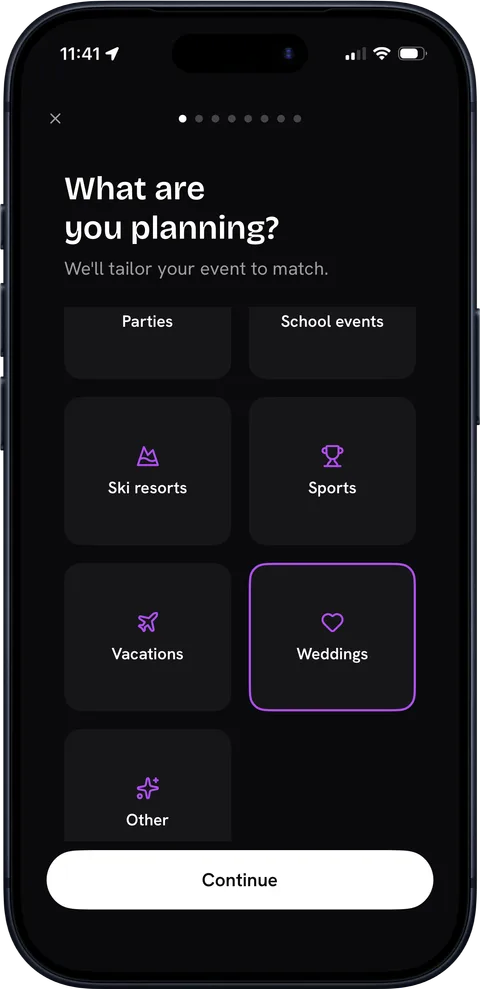
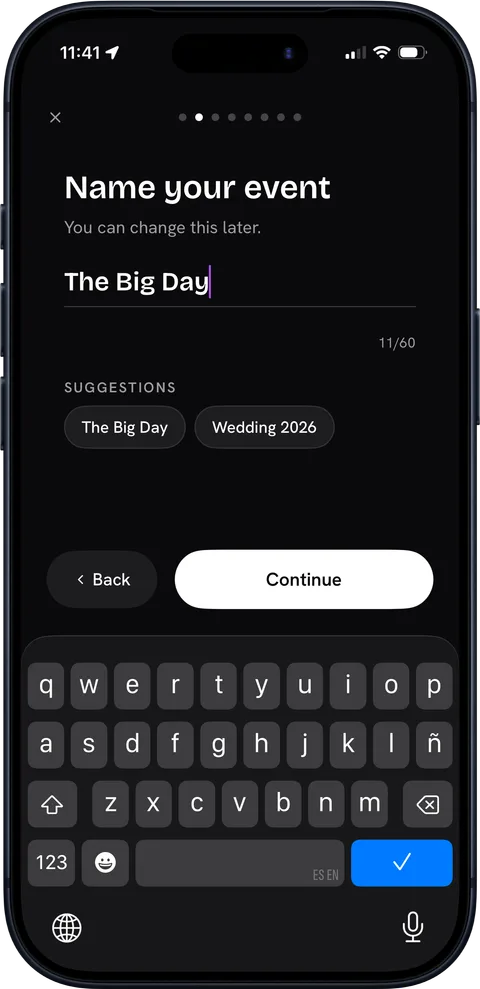
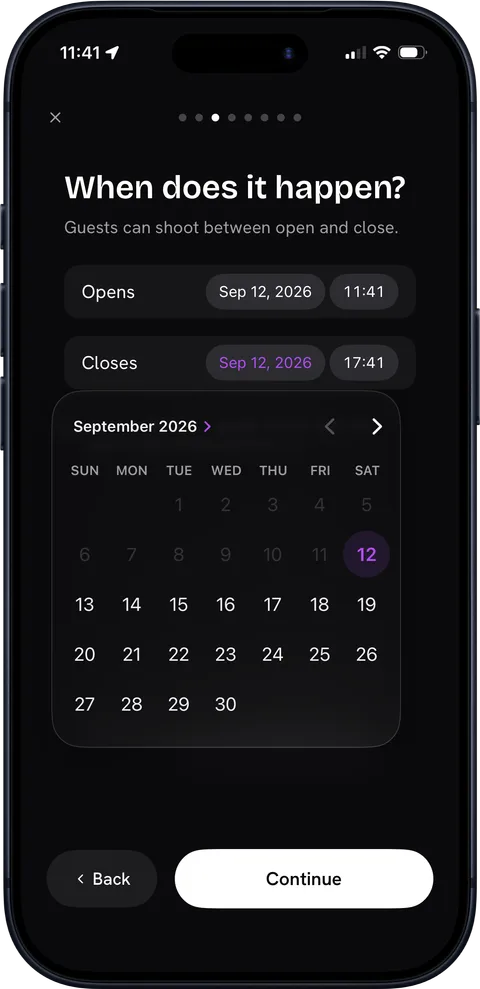
On iPhone, open the Konfetti app and tap Create. From Android or a computer, konfetticamera.app does the same job in the browser. Pick the event type, give it a name guests will recognize on sight ("Sofia & Marco" beats "Wedding 2026"), and set the dates. Shooting opens when the event starts, so guests who join early lose nothing.
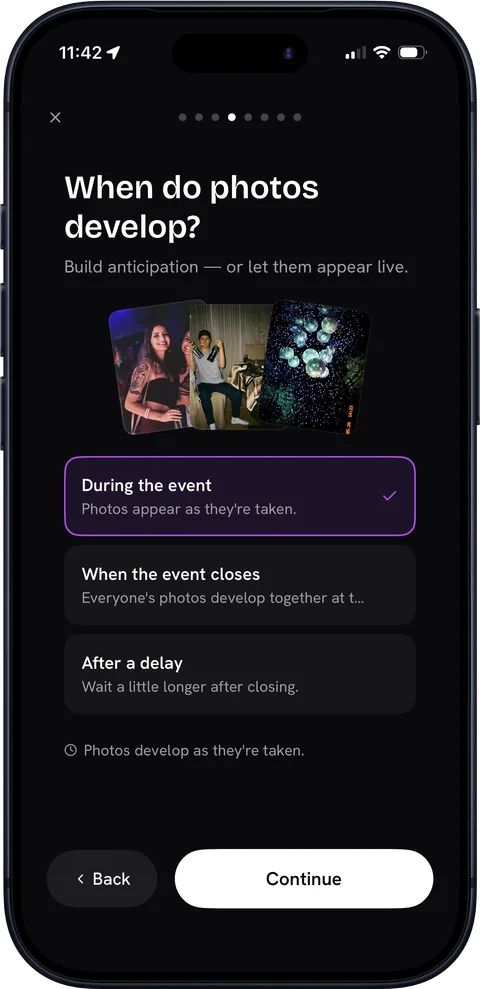
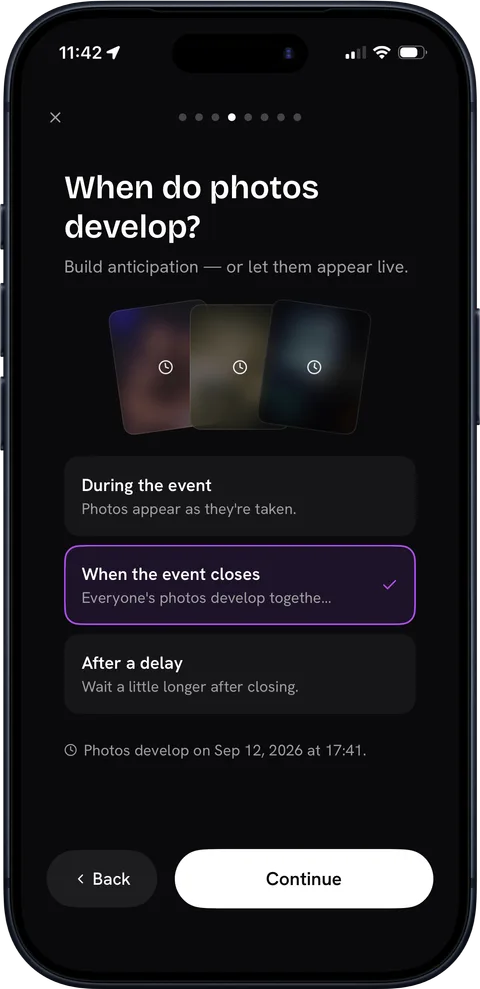
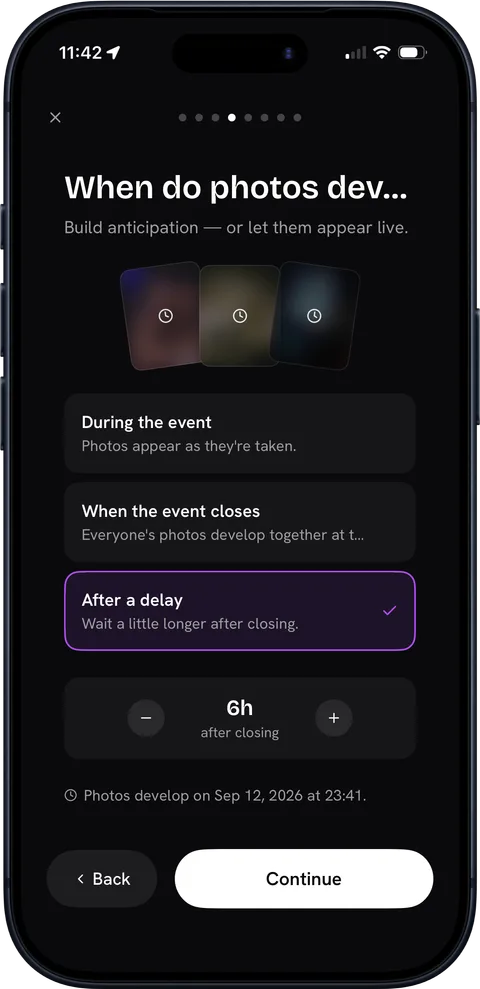
2. Choose when the photos develop
The wizard then asks when the photos develop: during the event, when it ends, or a few hours after. With a delayed reveal, every photo stays sealed until that moment, for you too, and then the whole day appears at once. Whatever you pick, tell your guests ("the album unlocks at brunch tomorrow" gives the wedding a second act).
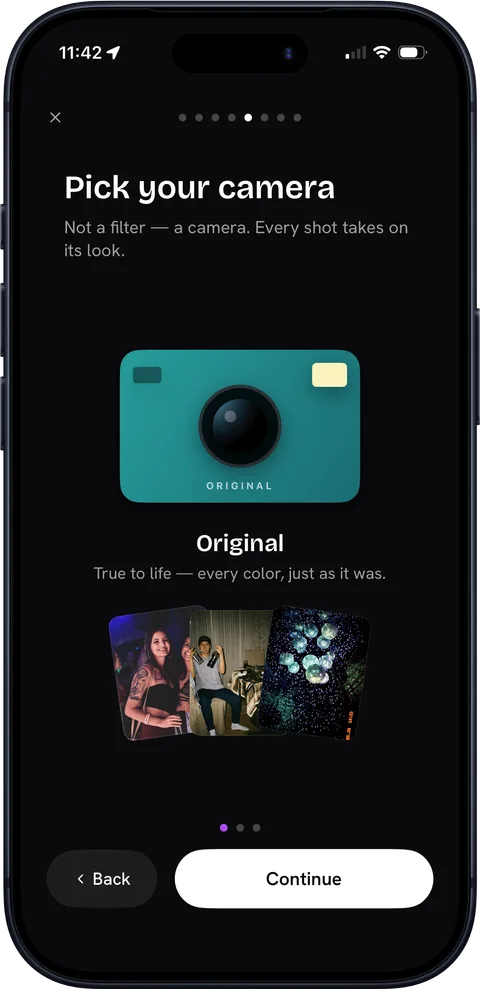
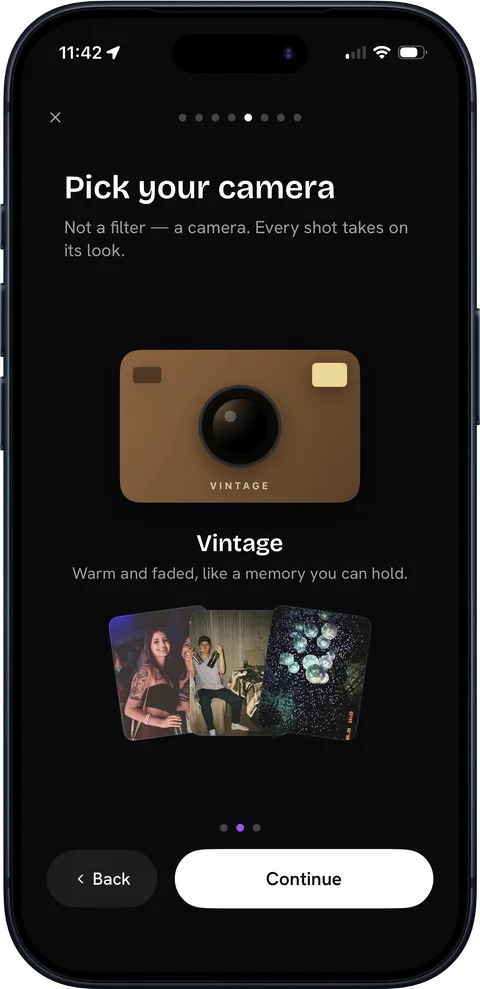
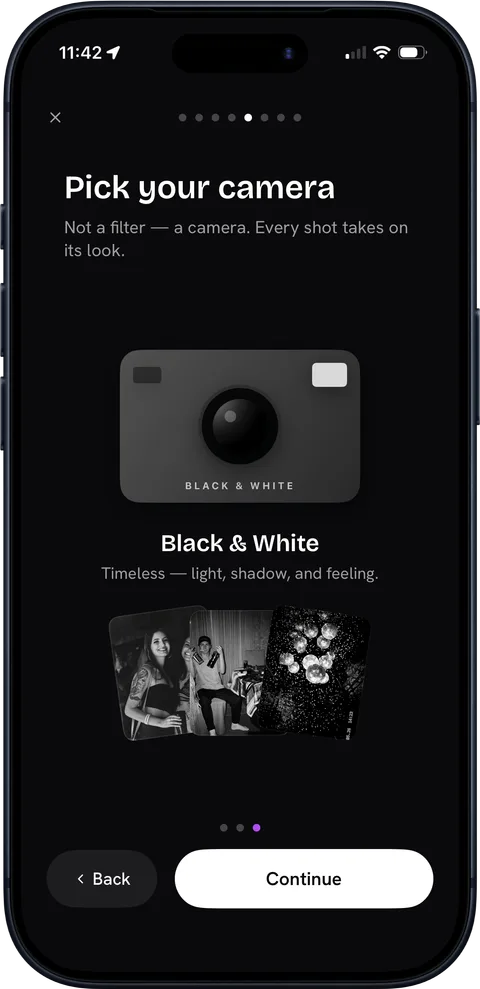
3. Pick your camera
Every guest shoots with the camera you choose here: original, vintage, or black and white. One camera for the whole event means the album comes back looking like a single roll of film. The look is locked once you create the event, but the app also keeps every photo's untouched original, so you can download those later and edit them your own way.
4. Design the event card
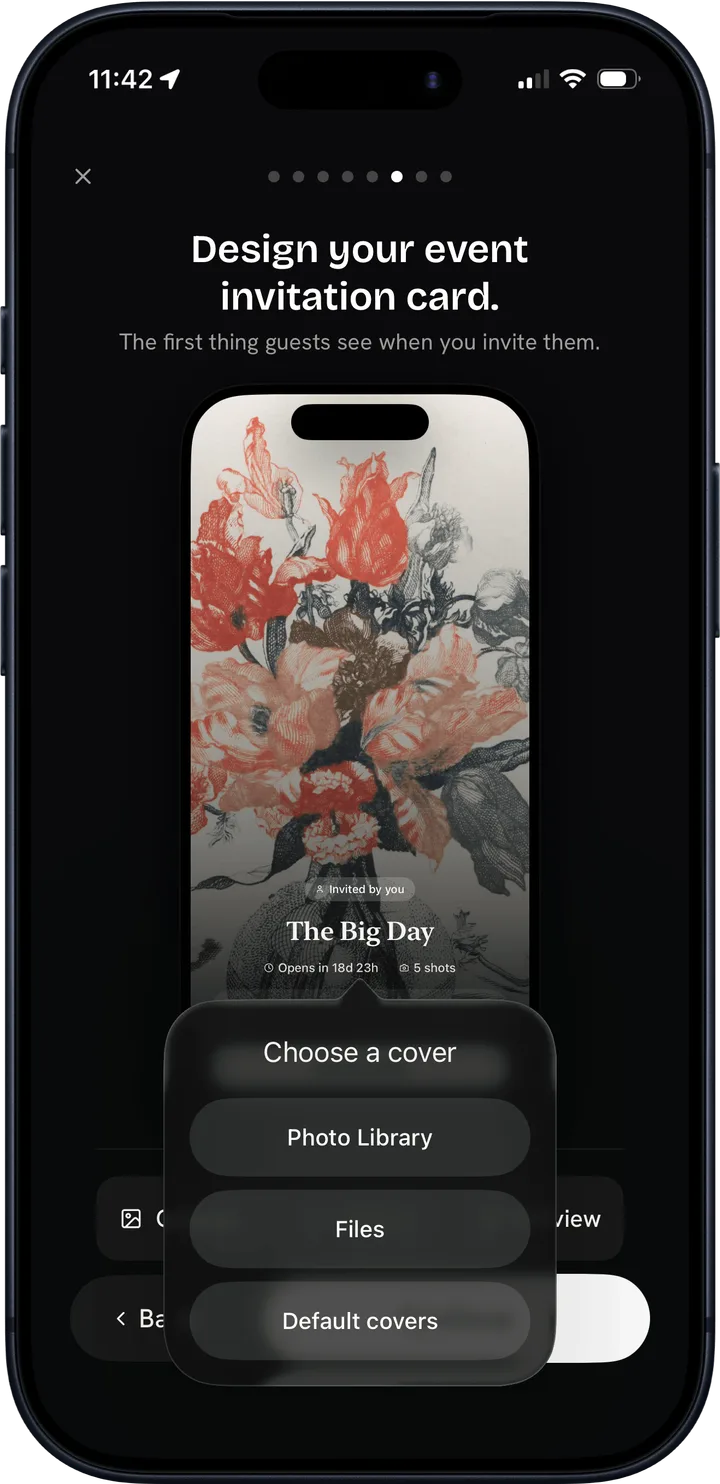
Next you design the event card, the cover guests land on when they scan. Make it obviously yours: an engagement photo, the venue, your monogram. A guest who picks a card up off their plate and lands on your faces knows they scanned the right thing.
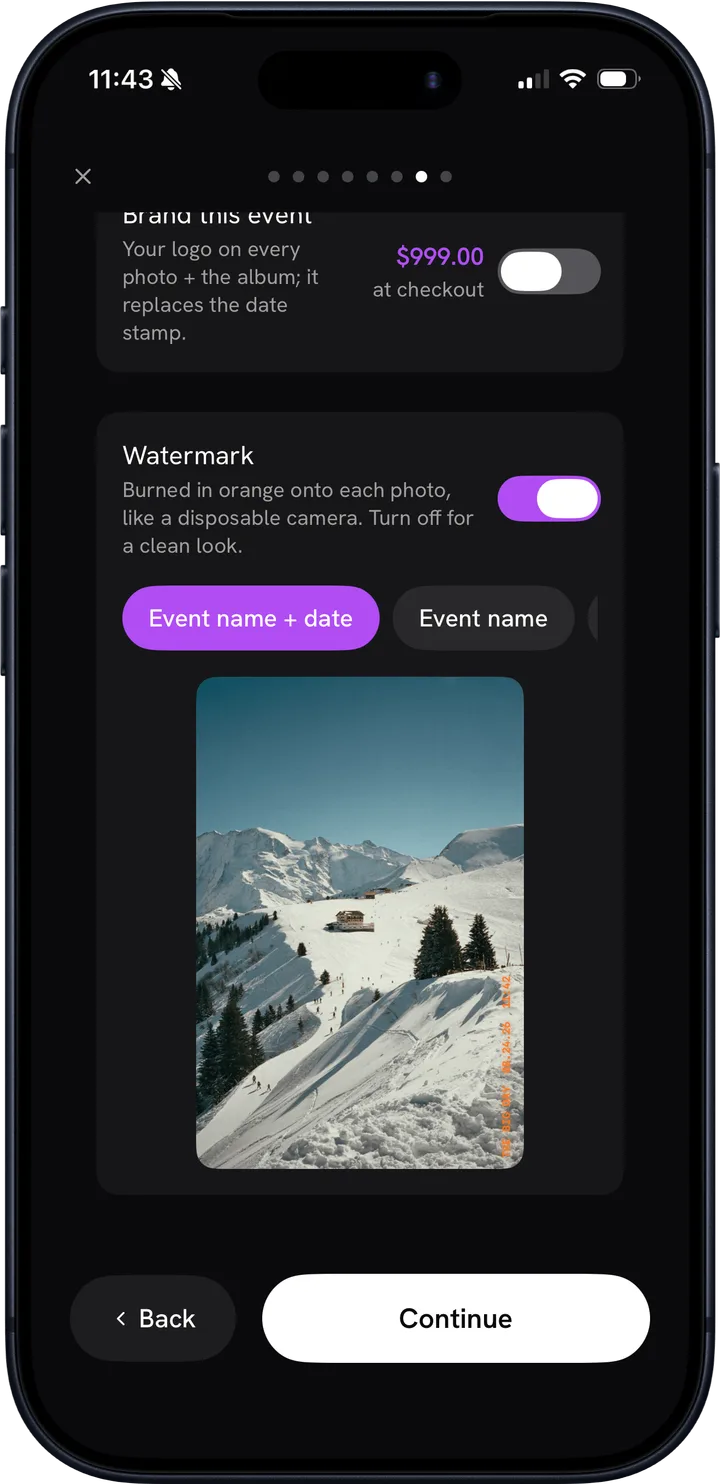
5. Choose the stamp on the photos
Then decide what gets printed in the corner of every shot: the event name and date, just one of the two, or nothing. For a wedding, name and date is part of the charm, the same corner print the disposable originals had.
6. Guests, shots, and who sees the album
The last screen sets the numbers. Capacity counts phones, not invitations: a couple where both partners shoot takes two spots, and so does every teenager at the family table. Every event starts free with room for 5 guests; paid capacities run from 10 up to 1,000, paid once for that event, with no subscription. Pick the tier above your expected headcount; if the party outgrows it anyway, Konfetti notifies you as capacity runs low and you can raise the limit on the spot.
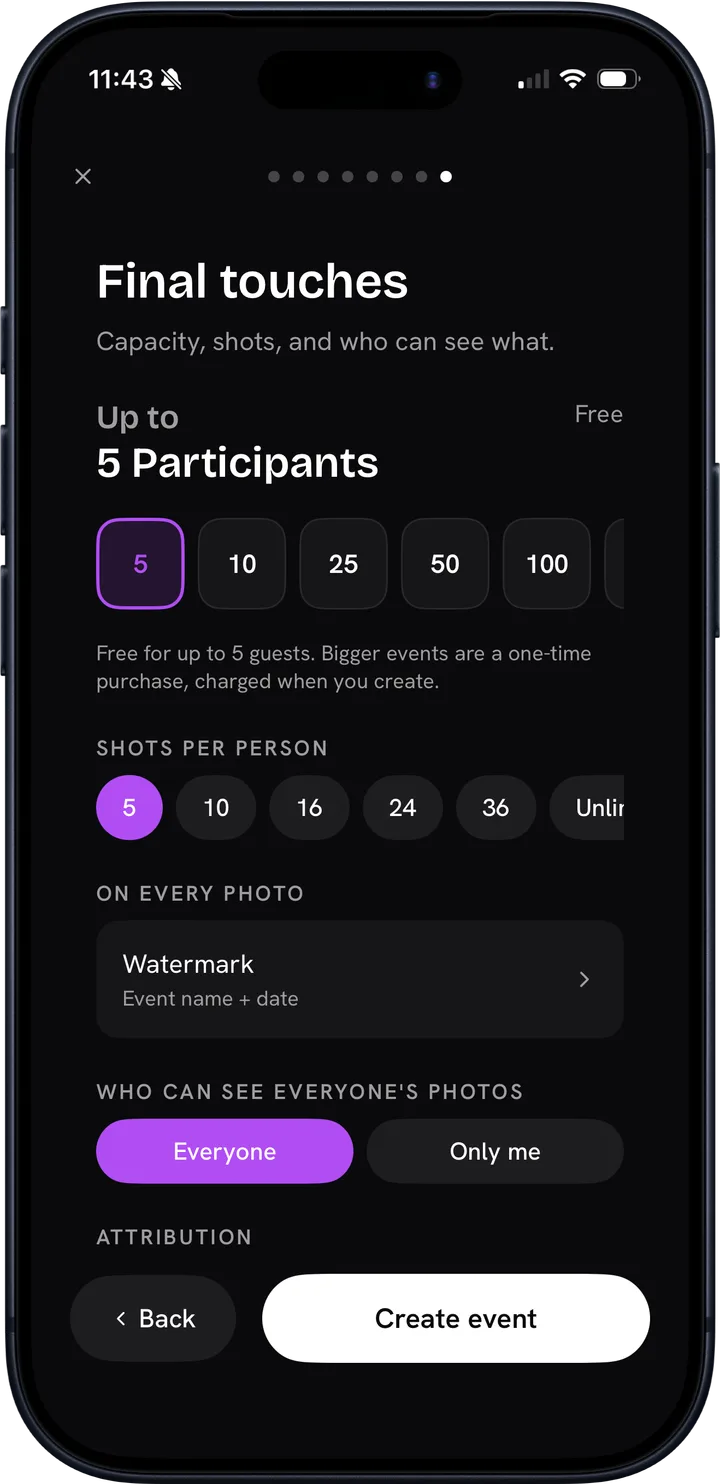
Shots per guest works like the disposable cameras that sat on wedding tables in the nineties: a fixed number makes guests frame a shot instead of taking forty photos of the same toast. For a wedding, 25 to 36 per guest works well; for a birthday or dinner party, 10 to 20 keeps the album tight. An unlimited upgrade exists if you want everything.
The same screen asks who sees the developed album: everyone, or only you as the host. Guests always keep the photos they took themselves. A separate setting controls whether guests can save the full-resolution originals or only browse.
Tap create and you're done. The QR code and invite link exist from that moment, so you can set everything up weeks ahead and print at your own pace.
What happens when a guest scans
Nothing to install and no account to create. On iPhone, the camera opens as an App Clip, a small piece of the app that appears in seconds. On Android and everything else, the camera runs in the browser. Either way, the guest's entire job is scan and shoot.
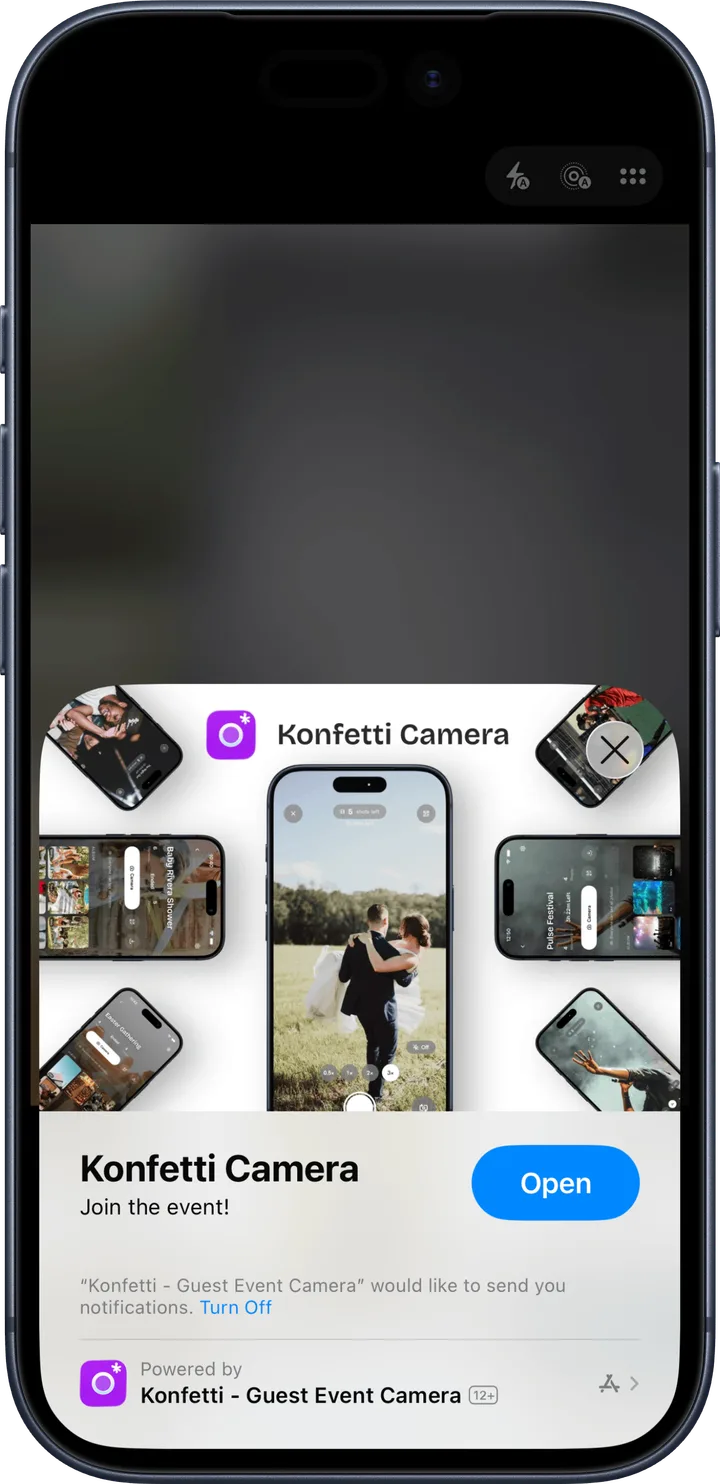
Weak signal doesn't stop anyone. Guests keep shooting offline and the photos upload themselves once the connection returns, which matters in stone churches and garden venues where bars disappear. The full mechanics are in our guide to QR code photo sharing.
The guest side also runs in English, Spanish, German, French, and Japanese, each guest in their own language, so at a bilingual wedding nobody needs instructions from their neighbor.
Getting the code in front of wedding guests
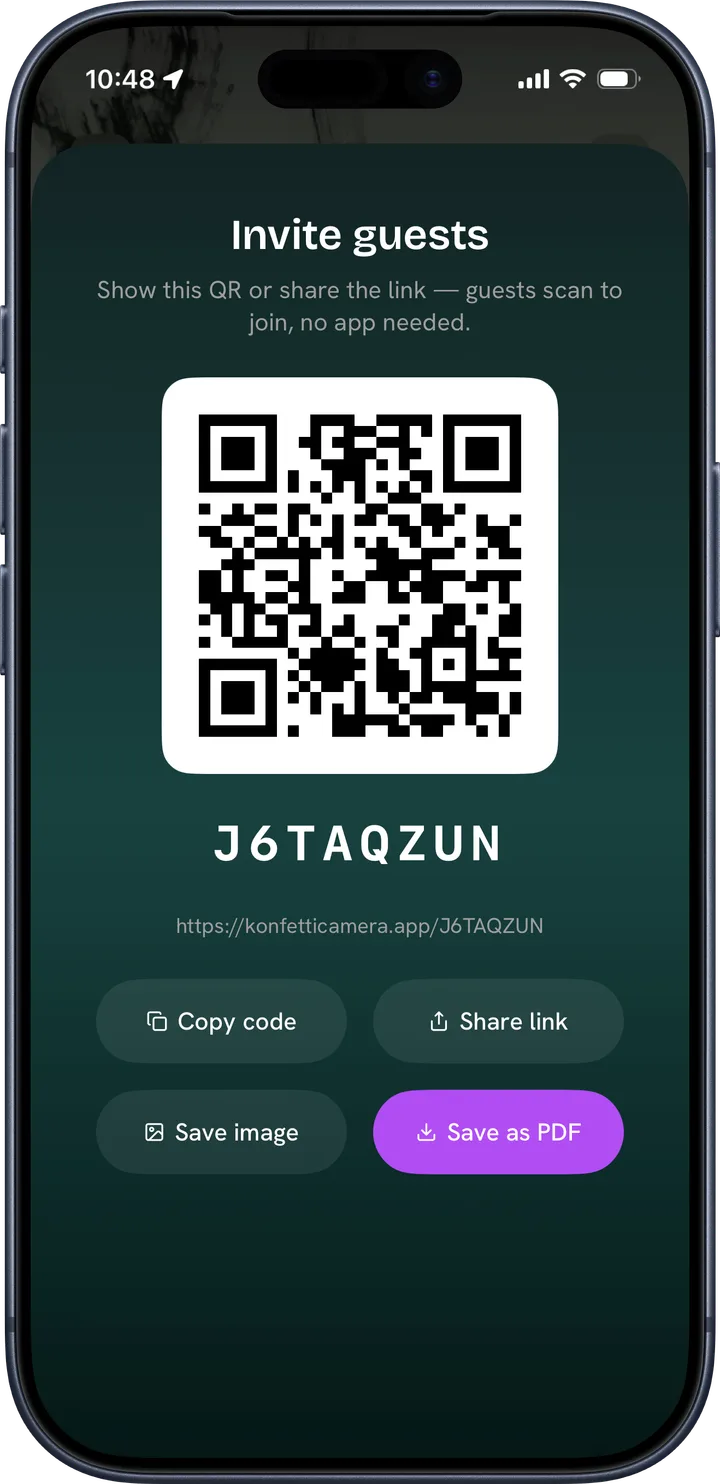
A printed code fills albums; a code that stays on your phone doesn't. The printing itself takes minutes: in the app, tap Invite, then Save as PDF, and the share sheet that opens has Print built in; Save image gives you a PNG if you'd rather place the code inside your own card design. What follows is where to put the code at a wedding so nobody misses it.
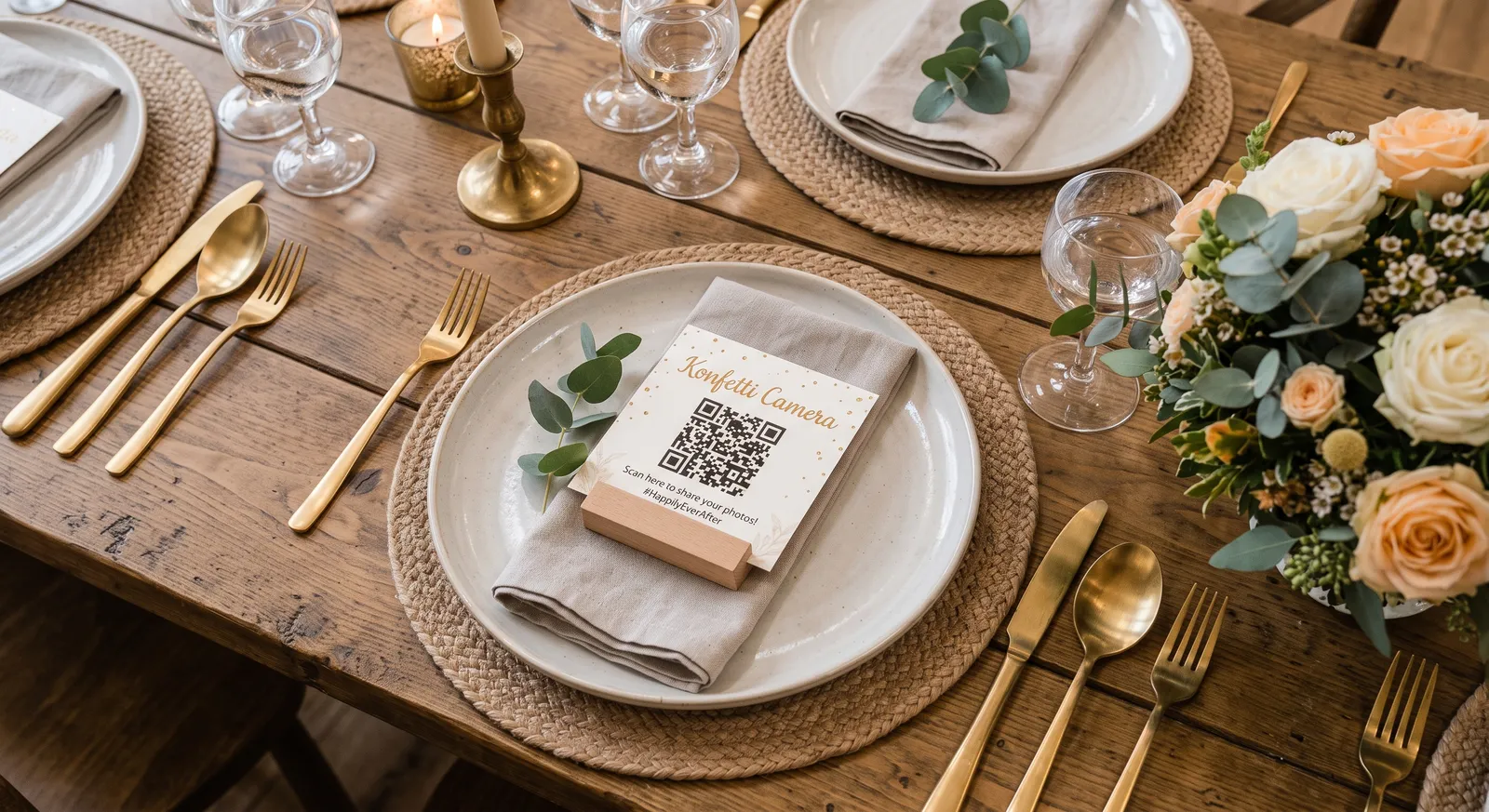
A presentation card at every place setting. Print small cards and lay one on top of each plate. Guests find it the moment they sit down, before the first course, so they shoot the whole evening instead of remembering the album during dessert. This placement outperforms every other one, because a guest sits next to that card for hours.
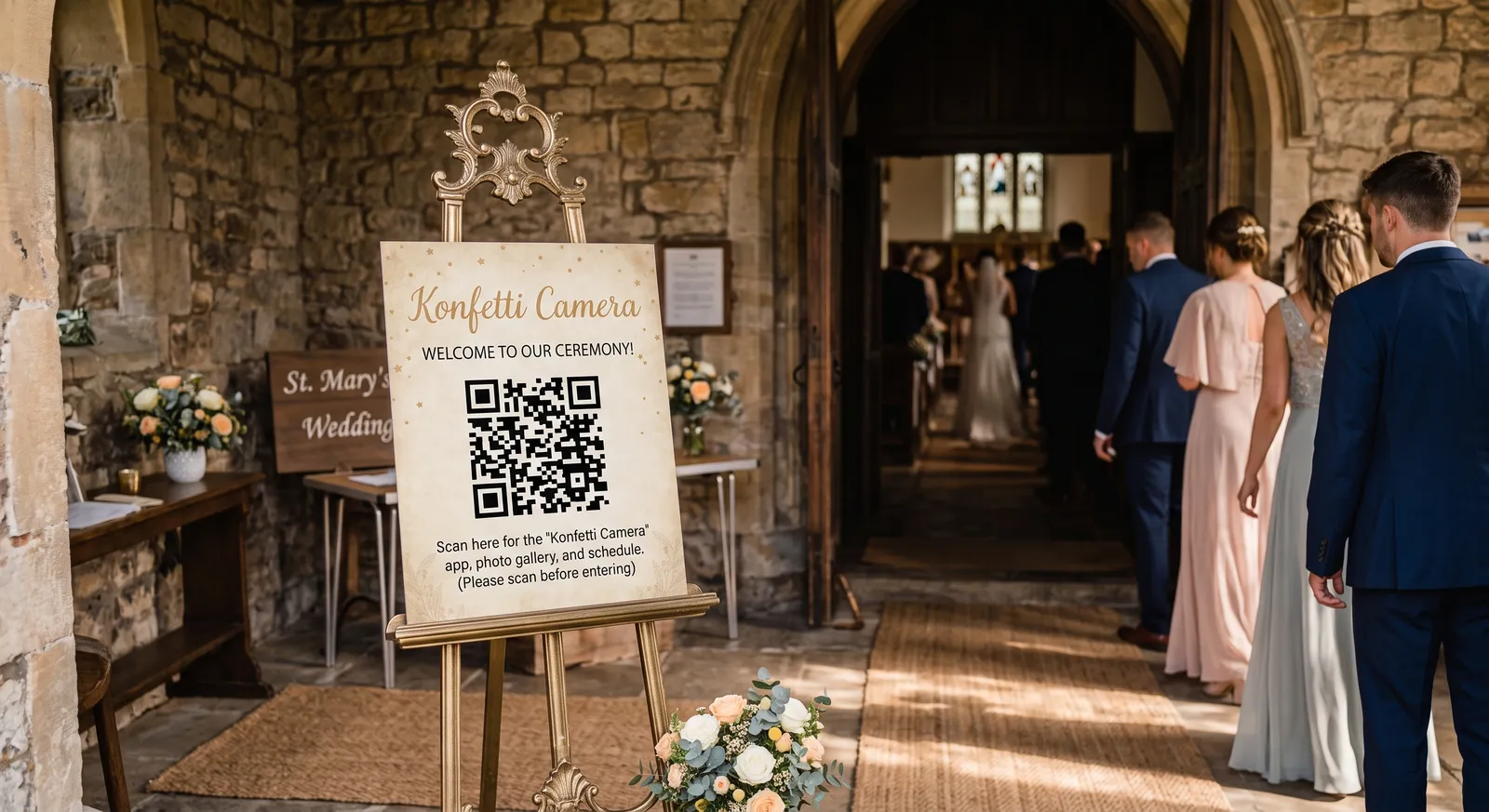
A larger print at the ceremony. The wedding doesn't start at the reception. A bigger code at the entrance of the church or ceremony venue catches guests during the quietest wait of the day, when phones are already out. If the church or religious venue hands out pamphlets or an order of service, ask for a corner of the page for your code. The confetti toss and the exit are shots you can't restage.
The invite link, sent ahead. Have your wedding planner, or whoever holds the guest list, send the invite link to every guest a day or two before. Guests who join early are in the album when shooting opens, phone ready for the first spontaneous moment instead of squinting at a card while it happens.
The bathroom entrances. Print two more codes and tape them at the bathroom doors. Every guest passes there at least once, usually while already looking at their phone. It sounds unglamorous and it works.
Between the plates, the ceremony, the inbox, and the bathroom door, there is no point in the day where a guest hasn't seen the code. That's the goal. You don't want to miss a single shot.
Your setup timeline
- Two weeks before: run the whole wizard: type and dates, develop timing, camera, event card, stamp, guests and shots.
- One week before: print the place cards and the ceremony sign, and brief your planner or MC on the one line to say out loud.
- A day or two before: the planner sends the invite link to the guest list. Scan one printed card yourself and check that your event opens.
- On the day: take the first shots yourself (the empty venue, the cake before it's cut) so early scanners don't land in an empty album. Then one sentence from the microphone: "there's a code on your table, scan it and start shooting."
- After: the album reveals at the moment you chose, and everyone sees the day from every table at once.
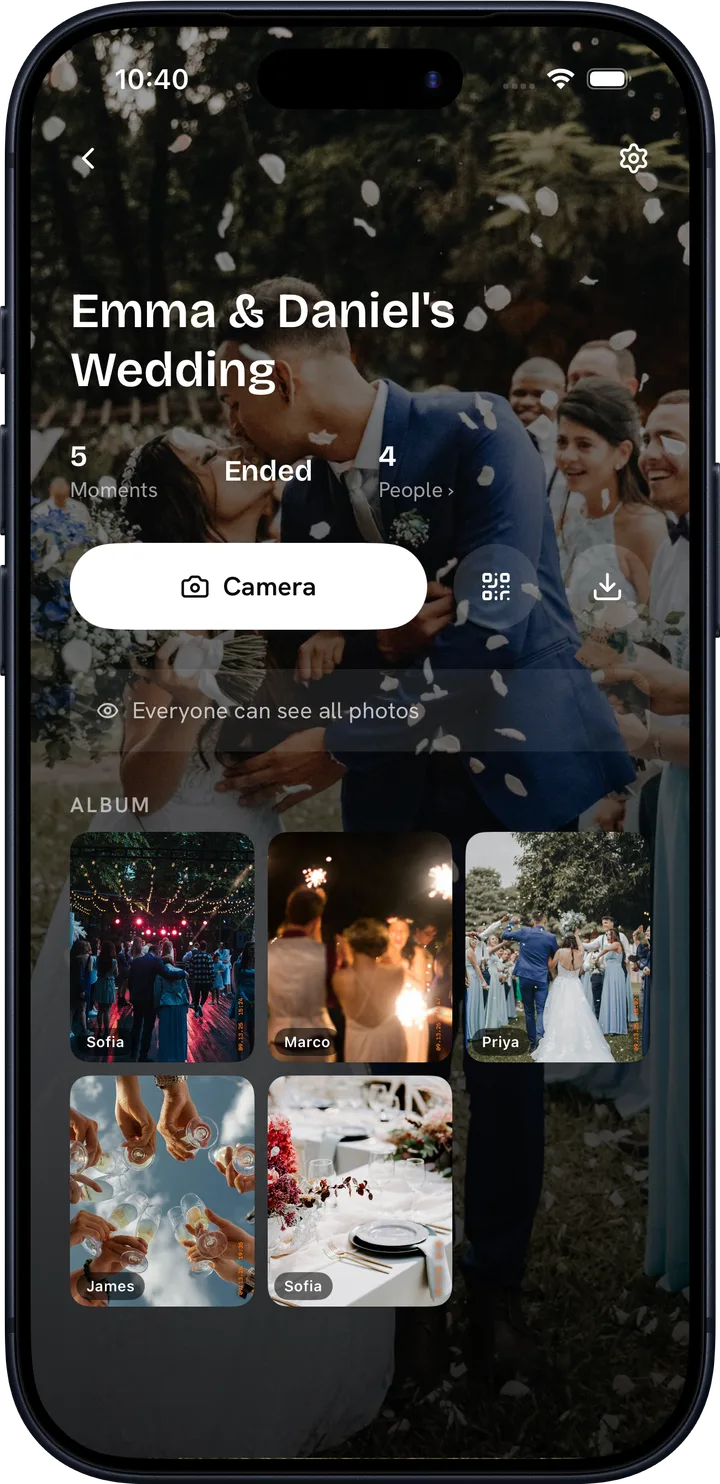
More ways to gather pictures, including the ones guests already took on their own camera rolls, are in our pillar guide to collecting wedding photos from guests.
Your event takes five minutes to set up and starts free. See the pricing, then try Konfetti Camera → konfetticamera.app
Frequently asked questions
- Do my guests need to download an app?
- No. A guest points their phone camera at your QR code and a camera opens right away: as an App Clip on iPhone, in the browser on Android and everything else. There is no account to create and no link to type. Guests scan and shoot.
- How many guests should I select?
- Count phones, not invitations. A couple where both partners shoot takes two spots, and so does every teenager with a phone. Events start free with room for 5 guests, and paid capacities go up to 1,000. If you guessed low, Konfetti notifies you as the event fills so you can raise the limit before anyone scans into a full event.
- When should I create the event?
- About two weeks before works well. Your QR code and invite link exist the moment you create the event, which leaves time to print place cards and signs, brief your planner, and send the link ahead. Guests who scan early are already in when shooting opens at your event's start time.
- What happens if more guests show up than I planned for?
- You get a notification as capacity runs low, and you can raise the guest limit on the spot from the app or the browser. Upgrades are a one-time purchase for that event only, so a bigger party never turns into a subscription.